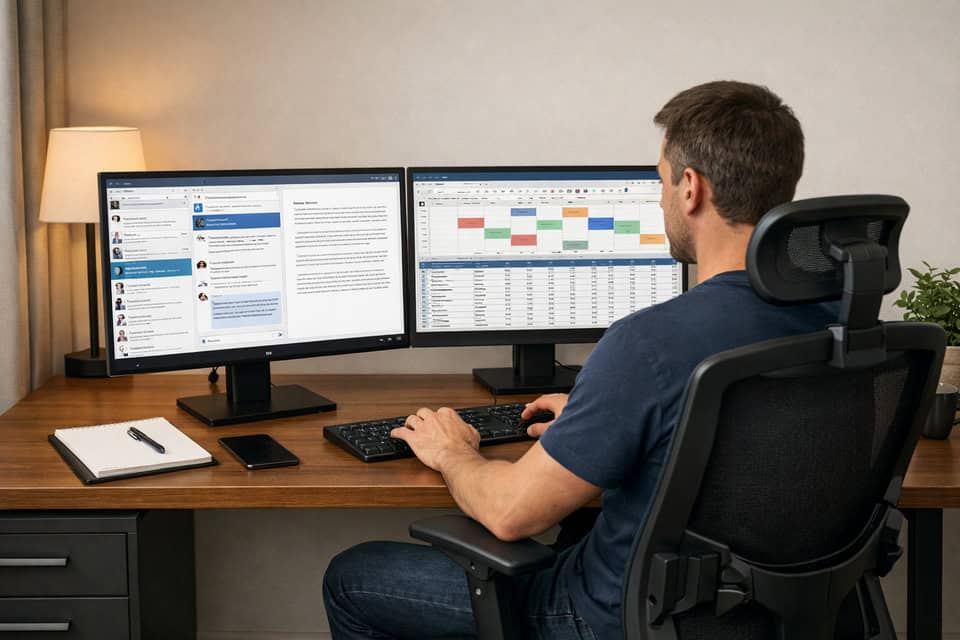
Dual monitor setup productivity guide for less switching, less fatigue, and a setup that actually works
Dual monitor setup productivity guide questions usually start the same way: you are tired of squeezing Slack, docs, spreadsheets, browser tabs, and meetings onto one cramped laptop screen. I’ve been there, and the fatigue is real. The promise of two screens sounds obvious—more room, more focus, fewer interruptions—but the reality is a little messier. A second monitor can absolutely help, especially for remote work, but it can also create neck strain, visual clutter, and a desk that feels like a cable nest if you set it up badly. The cable nest is the part the product photos never show.
This article is the practical version I wish I had before I bought my first extra display. You’ll get the real productivity gains, the trade-offs, the cost ranges, and a step-by-step path to build a setup that fits your work instead of just looking impressive on a desk photo. This often involves mounting your screens, so finding the best monitor arms for your desk setup is a critical first step. The cost ranges and trade-offs are the parts that make the setup actually stick.
Quick Summary
- Yes, dual monitors often improve productivity for multitasking-heavy work by reducing window switching and keeping key tools visible.
- They are not automatically better for everyone; simple workflows, tiny desks, or distraction-prone users may prefer one large screen or an ultrawide.
- The best dual monitor setup for productivity usually starts with two 24-inch or 27-inch displays, proper height alignment, and a clear “primary screen” role.
- Laptop compatibility matters: USB-C, HDMI, DisplayPort, docks, and GPU limits can decide whether your plan works smoothly.
- Ergonomics and cable management matter almost as much as screen size if you want long-term comfort and a cleaner desk.
Does a second screen really help, or is it just desk hype?
That said, I was more skeptical after actually living with it. My productivity did improve, but not in every way I expected. I typed no faster. I did not become magically organized. What changed was that I stopped losing my place every time I switched windows. One screen held the main task; the other held reference material, communication, or a meeting. That reduced the little mental resets that add up across a day. The trade-off is that more screen space only helps if your work actually needs two windows visible at once.
If your work is mostly one app at a time—say, focused writing, basic email, or light admin—a second screen may be unnecessary. In those cases, a single 27-inch display or an ultrawide can be cleaner. If your desk is shallow, your room is tight, or you already struggle with distraction, dual monitors can become one more thing to manage.
If you want a broader workspace plan before buying hardware, see Best home office desk setups for productivity and minimal desk setup ideas for remote work.
Why dual monitor productivity benefits feel real in some jobs and overrated in others
The real issue is not screen count. It is task switching cost. Every time you hide one window to find another, your brain has to reorient: where was that figure, which tab had the source, what message needed a reply, what cell was I checking? Those interruptions are tiny, but they stack up. In remote work, where communication tools are always buzzing, that stack gets heavy fast. Research consistently shows that the cognitive load of reorienting between apps drains more focus than the actual work itself. The interruptions feel small in isolation, but their real weight shows up in the afternoon slump.
Dual monitors help most when your work naturally has a “main task + support task” pattern. Think analyst plus spreadsheet reference, writer plus research notes, project manager plus chat and calendar, developer plus docs and terminal, support rep plus ticketing system and knowledge base. In those cases, persistent visibility matters more than raw screen size.
I also learned the downside the hard way: more screen space can increase distraction if you do not manage it intentionally. When I first added a second display, I treated it like a parking lot for every open app. News tabs, email, chat, analytics, music controls—everything stayed visible. The result was not focus. It was a low-grade hum of visual noise. Two screens are helpful when they reduce friction, not when they multiply temptation.
So yes, dual monitor workflow tips matter because the hardware alone is not the solution. The layout, app placement, and your habits decide whether the extra screen becomes a tool or just a brighter form of clutter. The first impression is more space, but the second look reveals whether that space actually reduces friction.
What I wish I knew before buying: costs, desk space, and compatibility basics
| Option | Best for | Typical cost | Desk/ergonomic notes |
|---|---|---|---|
| Single 27-inch monitor | Simple workflows, writing, general office use | About $180-$350 | Usually easiest to place; less neck movement |
| Dual 24-inch monitors | Remote work, spreadsheets, coding, support | About $240-$500 total | A good balance for most desks; aim for 24-30 inch viewing distance |
| Dual 27-inch monitors | Heavy multitasking, finance, design, large sheets | About $360-$900 total | Better with desk depth around 30 inches or more |
| Ultrawide monitor | Users who want one seamless canvas | About $300-$900 | Cleaner look, but window management matters |
| Add-ons | Arms, dock, cables | Arm $40-$150, dock $80-$300, cables $10-$40 each | Often overlooked in the budget |
For most people, a desk depth of at least 24 inches is the minimum, while 28 to 30 inches feels safer for two 27-inch screens. Ergonomically, the top of the main display should sit around eye level, and the screen should be far enough away that you can read comfortably without leaning in.
Laptop compatibility is the part many people skip. Windows users should check Microsoft’s multi-display guidance for display arrangement and scaling. Mac users should verify external display support through Apple’s external display support page. Some laptops physically have two ports but still limit how many external displays they can drive at once. I’ve seen people buy two monitors, then discover their USB-C port only handled one display without a proper dock.
How to build the best dual monitor setup for productivity without creating new problems
Start with monitor pairing. If you can, buy matching size and resolution. Two 24-inch 1080p or two 27-inch 1440p monitors are common sweet spots. Matching panels make scaling, brightness, bezel alignment, and color feel more consistent. My first setup mixed a 24-inch 1080p screen with a 27-inch 1440p display because I thought I was saving money. I did save money. I also spent weeks annoyed by tiny text on one screen and oversized windows on the other. The money saved on mismatched screens just turns into a patience tax you pay every time you shift your gaze.
Next, choose the layout that fits your work. Horizontal side-by-side is best for most people. Vertical vs horizontal monitor setup becomes interesting if you read long documents, code, or review chat and social feeds; a vertical side monitor can be excellent for reference content. Stacked monitors are usually the least ergonomic for all-day office work unless desk space is extremely limited.
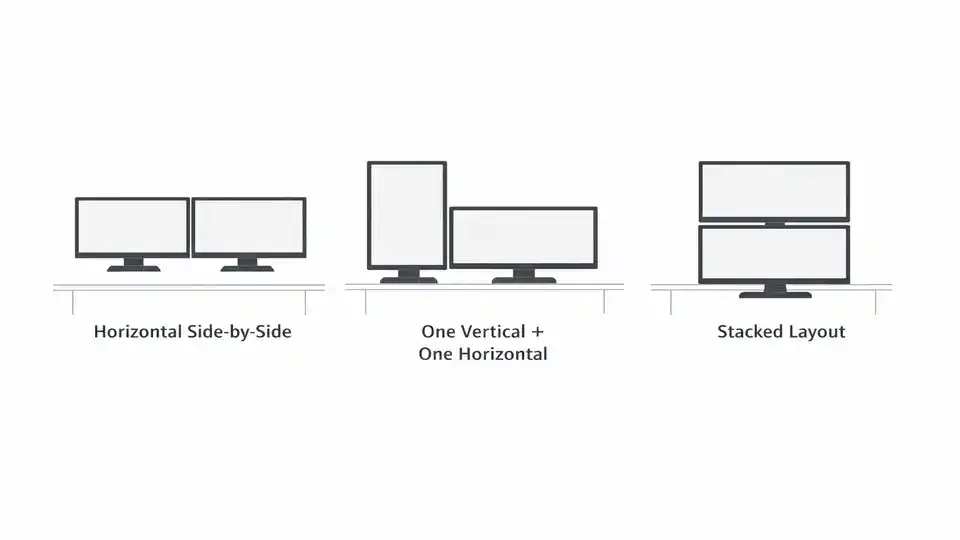
For ergonomics, put your primary screen directly in front of you. If both screens get equal use, center the gap between them with your nose aligned to the midpoint. Keep the top edge near eye level. A practical trick: test monitor height with books or boxes before buying a monitor arm. I did this for two days and realized I needed less height than I thought, which saved me from buying an arm that would have over-lifted the screens.
If you use a laptop with dual monitors setup, decide whether the laptop screen stays active. Clamshell mode with an external keyboard and mouse often feels cleaner. Side-by-side with the laptop open can work too, especially if the laptop becomes a third screen for email or music, but only if it does not force awkward neck angles. Realistic variable: USB-C can carry video, power, and data on some laptops, but not all. HDMI may support one display while USB-C plus a dock handles the second. GPU and chipset limits matter, so check before you buy.
Finally, configure the software layer. On Windows, arrange displays in the same physical order they sit on your desk, then tune scaling and text size through system settings. On Mac, do the same in Displays. Use snap layouts, virtual desktops, and app pinning. For a more detailed workflow layer after the hardware is ready, best productivity dashboard apps for remote work can help keep the second screen useful rather than noisy. The first hour after configuring snap layouts feels noticeably calmer — windows land where you expect them, not where they happen to open.
The small setup mistakes that quietly ruin a dual monitor desk setup
Mistake one is buying mismatched monitors without thinking about scaling. I did this once, and it made everything feel slightly off all day long. Cursor movement felt odd, windows resized strangely, and the brightness difference was obvious every morning when the room was still dim and the fan hum from the dock was the only sound in the office. If you already own one monitor, matching the resolution and physical height matters more than matching the brand. A monitor mount can help align mismatched screens at the same height, which reduces that persistent neck tilt and makes the setup feel more cohesive. Your eyes recalibrate between screens all morning before the brain stops noticing the jump.
Mistake two is placing both screens too far to the sides. That creates constant neck rotation. Your main display should stay centered, and the second should be angled inward. If you spend hours in spreadsheets or dashboards, even a small angle adjustment can reduce strain. This is where productivity gets won or lost: a setup that feels effortless for eight hours beats a flashy one that looks good for eight minutes.
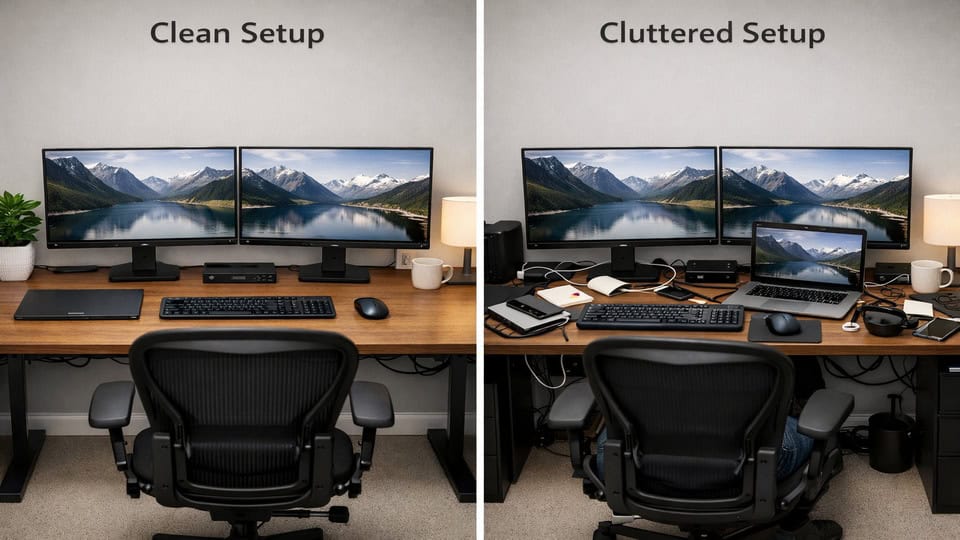
Other dual monitor mistakes to avoid are simpler but common: leaving brightness wildly different between screens, opening too many passive apps “just because there’s room,” and ignoring cable routing. Basic dual monitor cable management means using the monitor stand channel if available, adding two or three Velcro ties, and placing the dock where cables drop behind the desk instead of across it.
Dual monitors vs ultrawide vs one large screen: which setup actually fits your work?
If you are deciding between setups, think in terms of workflow rather than specs. Dual monitors are best when you want strong separation between tasks. An ultrawide is best when you want one continuous workspace. A single large monitor is best when simplicity matters more than parallel visibility. The right choice only becomes obvious after a week of using it, not an hour of reading reviews.
Dual monitors are ideal for coding, finance, customer support, project management, research-heavy writing, and meeting-heavy roles. You can keep one screen dedicated to communication or reference and one to execution. Ultrawides suit designers, editors, and users who dislike bezels in the middle. Single large screens work well for focused writers, administrators, and users with smaller desks.
Who should avoid dual monitors? You might want to skip them if your desk is under 24 inches deep, your workflow is mostly one app at a time, or you already know extra visible apps pull your attention away. In those cases, a cleaner single-screen setup may be the better decision. For research-backed setup ideas and perspective, I found the practical framing in IT Foundations’ dual-screen productivity article especially useful because it focuses on arrangement and habits rather than just selling more hardware.
If you are trying to create a calmer workspace overall, not just add screens, revisit your desk footprint, lighting, and accessory count before upgrading. Monitor arms free up desk space and let you adjust height and angle without a bulky stand taking up surface area. The best setup is the one you stop noticing because it supports your work quietly. The quietest upgrade is often the one you stop seeing.
A realistic afternoon plan for how to set up dual monitors for remote work
| Step | What to check | Good default |
|---|---|---|
| Evaluate space and workflow | Desk width, depth, daily apps, meeting frequency | At least 48-inch desk width for two 24-inch monitors |
| Check laptop/GPU support | Ports, dock needs, display limits | One dock if you connect/disconnect often |
| Choose monitor size/resolution | Matching panels, text clarity, budget | Two 24-inch 1080p or two 27-inch 1440p |
| Select stands or arms | Height range, desk clamp space | Use included stands first if budget is tight |
| Connect and configure | Scaling, arrangement, refresh rate | Match scaling where possible |
| Create workflow zones | Primary screen vs support screen | Main work center, communication/reference side |
| Test and adjust ergonomics | Neck angle, eye level, brightness, glare | Make one change at a time over 2-3 days |
My advice is to set it up in one afternoon, then live with it for three workdays before buying extra accessories. You will notice things quickly: the screen that feels too high, the cable that keeps brushing your leg, the monitor that catches afternoon glare, the app that belongs on the other side. Those details do not show up in product listings, but they matter a lot in real use.
The best dual monitor setup for productivity is the one that makes your next task obvious the moment you sit down. It rewards the setup that eliminates the pause between deciding what to do and starting it.
Frequently asked questions people still have before they buy
Is dual monitor better than ultrawide?
Usually for multitasking, yes. Dual monitors create clearer separation between tasks, which helps if you compare documents, monitor chat, or keep meetings visible while working. Ultrawides feel cleaner and avoid a center bezel, which some users prefer for design or editing. If your work needs distinct “zones,” dual monitors often win. If you want one seamless canvas and a tidier look, ultrawide may suit you better.
Can my laptop support two monitors?
Maybe, but do not assume. Check your laptop’s USB-C, Thunderbolt, HDMI, or DisplayPort support and confirm how many external displays the device can drive. Some systems need a dock; some support only one external display natively. Start with the official guidance from Microsoft or Apple, then confirm your exact laptop model before buying cables or monitors.
Should I use one vertical monitor?
A vertical side monitor works well for coding, long documents, chat, ticket queues, and reference material. It is less useful for spreadsheets, video calls, or design work. If you are unsure, test the idea by rotating one monitor temporarily before committing to a permanent arm or layout.
What is the best dual monitor setup for productivity on a budget?
Two matching 24-inch 1080p monitors are still the value pick for many home offices. Keep the included stands at first, add a basic dock only if reconnecting is annoying, and spend a little on decent cables and a few Velcro ties. Budget setups fail more from poor layout than from cheaper panels.
Start simple, then improve what actually slows you down
If your workday is full of app switching, reference checking, spreadsheets, chat, and meetings, a second screen is usually worth it. The clearest dual monitor productivity benefits come from reduced switching friction and better visibility of supporting tools. But the extra screen only helps when the setup is intentional: good placement, realistic compatibility checks, sensible app zones, and a willingness to remove distractions instead of just giving them more room.
I would not tell everyone to upgrade blindly. If your desk is small, your workflow is simple, or you know you focus better with fewer things in view, a single large monitor or ultrawide may be the smarter move. That is not a downgrade. It is just a better fit.
You do not need a perfect desk to work better—you need a layout that stops stealing your attention.
Ready to build a cleaner, more focused setup?
Before you buy anything, measure your desk, check your laptop’s display support, and decide what belongs on your primary screen. Then upgrade only the parts that solve a real problem.
For more workspace ideas, revisit Best home office desk setups for productivity or simplify your space with minimal desk setup ideas for remote work.