Best webcams for remote meetings that actually fix bad video calls
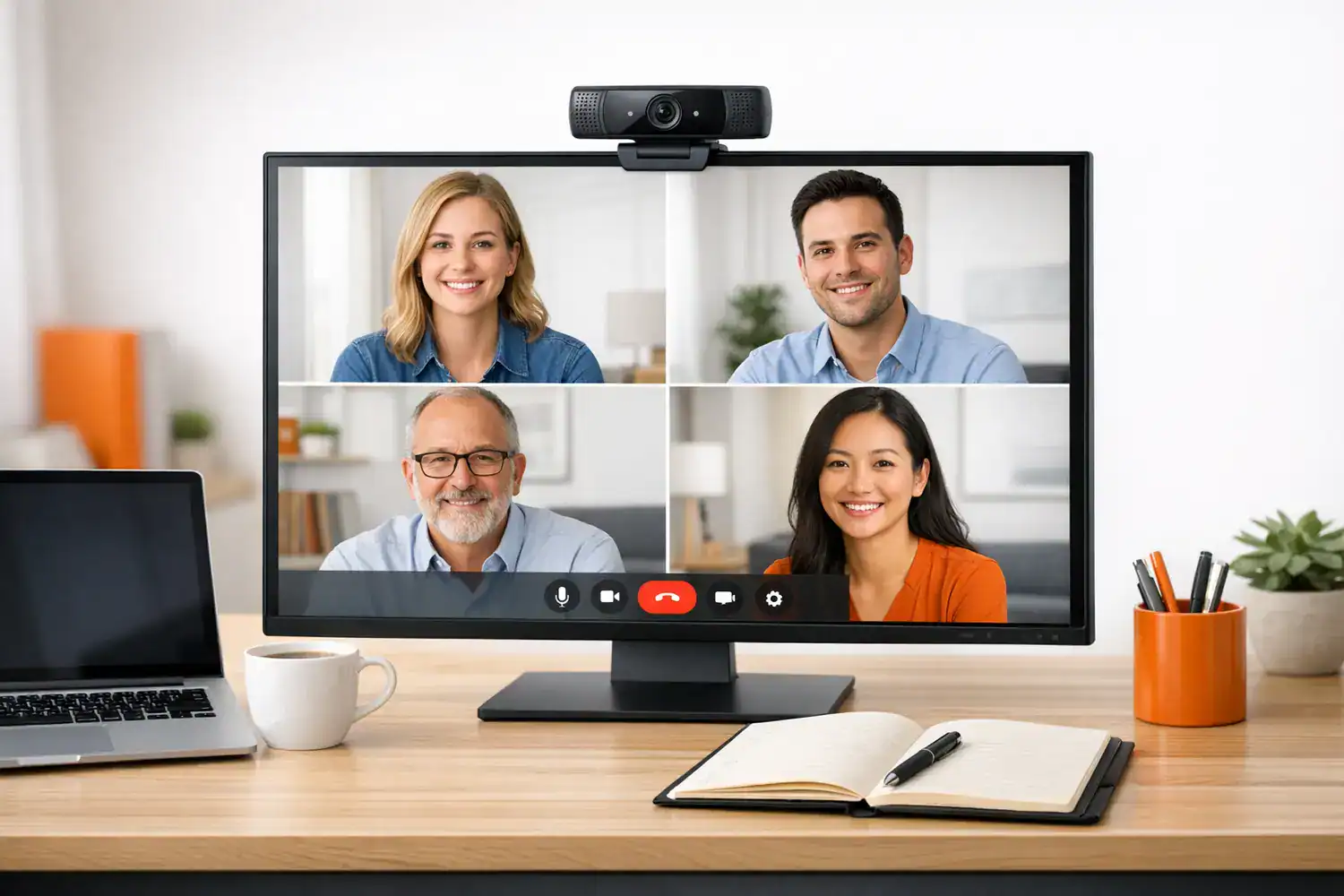
The best webcams for remote meetings aren’t automatically the most expensive ones — I learned that the slightly painful way after sitting through calls where I looked dim, soft, and oddly tired even when I was fully prepared. If you work from home, interview remotely, or meet clients online, your camera affects how clear, credible, and engaged you seem. A built-in laptop webcam can be fine in perfect light, but most home offices aren’t perfect. The smarter upgrade is usually a reliable external webcam with strong low-light handling, stable exposure, and simple setup rather than chasing 4K specs you may never see on Zoom or Teams. It gives back more than it asks for — a better camera costs less than a better light setup and does more of the work.
This guide gives you a realistic buying path: what to buy on a budget, when 4K is worth it, what works best for Zoom and Teams, and what matters more than resolution. If I had to rebuy today, I’d start with a good 1080p webcam, better placement, and a cheap front light before spending premium money. It’s a trade-off that favors patience over spending — and usually wins.
Quick Summary
- Best overall: a solid 1080p external webcam with good low-light performance is the safest buy for most remote workers.
- Best premium choice: a 4K webcam with auto framing makes sense for executives, presenters, and people who record content as well as attend meetings.
- Best budget option: a dependable plug-and-play 1080p model beats most laptop cameras for around $40 to $70.
- Big reality check: Zoom and Teams often compress video, so lighting and positioning matter more than 4K.
- Audio truth: a noise-cancelling webcam microphone is acceptable for casual calls, but not ideal for high-stakes meetings.
If you need the short answer, buy for lighting first, not specs
The fastest recommendation is simple. If your room has decent front light and you mostly join meetings, grab a 1080p webcam with reliable exposure and autofocus. If your room is dim or your desk faces a bright window, prioritize a low light webcam for home office use over headline resolution. If you present, move around, or want a more polished presence, step up to a premium 4K model with framing features. Resolution matters less than the light you already have, and that trade-off is worth sitting with.
Three buying lanes cover almost everyone:
- Budget: 1080p, fixed or basic autofocus, decent mic, around $30 to $60
- Best value: 1080p, better image processing, stronger low-light handling, around $70 to $120
- Premium: 4K, better sensor, software controls, auto framing, around $180 to $300+
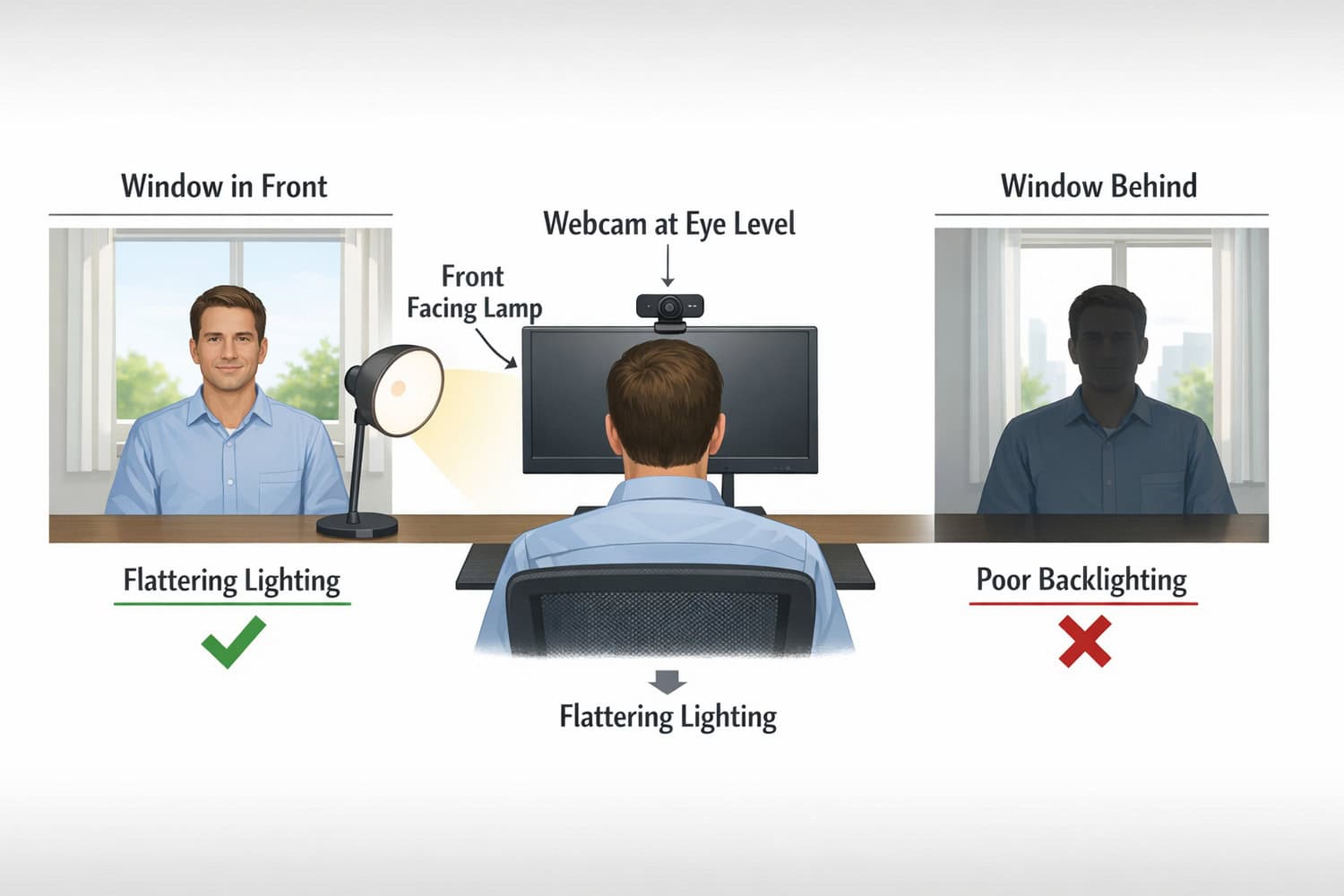
When I compare what actually changed my call quality, the camera upgrade helped, but the bigger jump came from moving the webcam to eye level and adding soft front light. A sharp camera in bad light still looks bad. It’s the kind of upgrade that costs nothing and changes everything.

Why your webcam changes how professional you seem on calls
Remote meetings flatten a lot of normal in-person cues. People notice your face, your eye line, your lighting, and whether your image flickers or blows out when you move. That matters on job interviews, client calls, team updates, and recorded meetings. You don’t need a studio setup, but you do need to look intentional. There’s a real difference between being visible and being presentable. It’s a small investment that pays back every time someone takes you seriously.
Platform limits matter too. Zoom, Microsoft Teams, and Google Meet typically compress video heavily, which means the full benefit of 4K is often reduced in live calls. Microsoft’s hardware guidance and certification approach also emphasize compatibility, reliability, and consistent performance more than flashy specs. If you want to check hardware standards and compatibility expectations, review Microsoft Teams device guidance. For practical home-office webcam context, Logitech’s own buying advice is also useful at Logitech. The lag between a spec sheet and a live call is where most webcams lose their shine.
I noticed a subtle credibility shift after upgrading from a laptop camera to an external one. People interrupted me less, I felt less self-conscious, and recorded clips looked cleaner. That sounds small, but over dozens of weekly calls, it adds up. A better camera asks for nothing but a USB port, yet it quietly rewrites how others perceive you in the frame.
The webcam specs that matter more than the box claims
Below is a practical comparison of representative webcam types and popular classes you will actually see recommended. I am not pretending every model behaves identically, but these are the real decision factors: exposure control, low-light performance, software stability, mic quality, and whether premium features help your workflow. A cheaper webcam with good software support often outperforms a pricier one with buggy drivers.
| Model/Class | Resolution | Low Light | Mic Quality | Auto Framing | Compatibility | Price Tier | Best For |
|---|---|---|---|---|---|---|---|
| Basic 1080p budget webcam | 1080p | Fair | Acceptable | No | Usually Mac/Windows | $30–$60 | Team standups, casual calls |
| Logitech C920/C922 class | 1080p | Good | Decent | No | Strong Mac/Windows support | $70–$110 | Best overall value |
| Business 1080p webcam with software controls | 1080p | Good to very good | Good | Sometimes | Often optimized for work apps | $100–$170 | Client-facing professionals |
| Premium 4K webcam | 4K | Very good | Good, not studio-grade | Sometimes | Mac/Windows with app support | $180–$250 | Recorded presentations, hybrid work |
| 4K webcam with AI auto framing | 4K | Very good | Good | Yes | Check software restrictions on work laptops | $220–$350+ | Executives, presenters, training leads |
If you want independent testing methodology, I recommend checking comparisons from RTINGS webcam reviews and practical buying notes from Wirecutter’s webcam coverage. They are useful because they focus on image quality in real conditions, not just spec sheets. It asks for a few minutes of reading but saves hours of return-label hassle.
What separates the best webcams for remote meetings from the overpriced ones
1080p vs 4K webcam for remote work
This is the most overhyped part of the category. A 1080p webcam is enough for most meetings. A 4K webcam can look cleaner, especially if the camera uses that extra resolution for digital cropping, reframing, or sharper recordings. But on a live Zoom or Teams call, the visible difference is often smaller than buyers expect. Compression narrows the gap. The resolution that looks impressive on paper is the one that compression eats first.
If you create training videos, product demos, or recorded updates, 4K becomes easier to justify. If you mainly do daily meetings, standups, and interviews, 1080p is usually the better value. The biggest win is not more pixels; it is better processing. It is the kind of trade-off that only becomes obvious after the third meeting where you actually look rested.
Low-light performance is about sensors, not marketing words
A lot of webcams claim “low-light correction.” That can mean anything from useful exposure balancing to ugly software brightening that adds grain and smears detail. Cheap cameras often brighten your face by lifting shadows, but the result looks noisy and flat. Better webcams use stronger sensors and image processing, so your skin tones stay more natural. The cheap ones just swap shadow noise for bright noise, which is not really a fix.
Room direction matters more than many people realize. If a window is behind you, even a good camera may darken your face or blow out the background. If the window is in front of you, the same webcam can suddenly look much more expensive. I have tested this at my own desk, and the difference between backlit and front-lit video was larger than the difference between two cameras nearly $100 apart.
Built-in mic versus dedicated audio
A webcam microphone is fine for quick internal calls, but it is rarely the best choice for interviews, sales calls, or anything sensitive. Even a good noise-cancelling webcam microphone struggles with keyboard clicks, room echo, and distance from your mouth. If audio really matters, a USB headset or compact desk mic will outperform almost any webcam mic.
That said, if you need one simple device, choose a webcam with dual mics and decent noise reduction. Just keep expectations realistic. The camera can improve how you look; it will not magically fix a hollow room.
Auto framing, software, and setup friction
A webcam with auto framing is genuinely useful if you present standing up, move around a whiteboard, or record short pieces to camera. For normal seated calls, it can feel unnecessary or mildly distracting. I have seen premium cameras crop and re-center a little too eagerly, which looks more “AI demo” than professional meeting.
Premium webcams also have honest downsides: they can be bulky on thin monitors, some software utilities are clunky, and work laptops may block installation of companion apps. Cable clutter is another small annoyance. If you want a clean webcam for laptop setup, the simplest plug-and-play model often causes less friction than a feature-heavy flagship.
The buying mistakes that waste money fast
The first common mistake is buying resolution instead of solving the room. I made this exact mistake once: I bought a 4K webcam before fixing my lighting, and the result was still disappointing. Yes, the image was technically sharper, but my face was still shadowed and the background still looked brighter than I did. That was a frustrating way to learn the order of operations.
The second mistake is assuming a webcam mic replaces proper audio. It usually does not. If your calls involve hiring, selling, coaching, or presenting to leadership, the audio side deserves separate attention. A webcam can make you look more polished, but poor sound erases that advantage quickly.
Do not overpay for premium features you will never use. If you do not record content, do not move around on camera, and just need reliable daily meetings, a mid-range 1080p webcam is often the smartest buy.
Which webcam makes sense for your exact work situation
Here is the practical recommendation set I would give a friend or coworker.
Best for job interviews
Choose a stable 1080p camera with good auto exposure and natural color. Interviews punish flicker, backlighting, and weird skin tones more than they reward extreme sharpness. A dependable mid-range webcam is the best webcam for Zoom meetings if your goal is simply to look clear and trustworthy.
Best for team standups and internal calls
A budget 1080p model is enough if your room has decent light. This is where budget webcam for video calls options shine. Spend less on the camera and more on a small lamp or monitor riser.
Best for client-facing professionals
If you meet clients regularly, prioritize low-light consistency and color accuracy. A business-focused 1080p or entry premium 4K webcam is a good fit. This is also where an external webcam for remote workers clearly beats most laptop cameras.
Best for executives, trainers, and presenters
Go premium if you move around, record updates, or want framing features. A best webcam for Microsoft Teams setup at this level should include software controls, 4K capture, and a stable mount. You are paying for flexibility, not just sharpness.
Who should buy what, and who should skip it
This is ideal for people on video several times a week, job seekers, freelancers, managers, and anyone whose face is part of their work. You might want to skip a webcam upgrade if you rarely use video, already have a modern laptop with a strong camera, or cannot control your room lighting at all. In that case, start with lighting and placement first.
The right webcam should remove friction, not add another gadget problem to your desk.
A simple checklist to choose the right webcam without overthinking it
If the category feels crowded, use this decision path. It keeps you from paying for features that sound impressive but do not change your actual meetings.
| Step | What to Check | Decision Rule |
|---|---|---|
| Assess lighting | Window position, lamp, room brightness | If light is weak or behind you, prioritize low-light performance first |
| Choose resolution | Meetings only or recordings too | Meetings = 1080p; meetings + content = consider 4K |
| Set budget | $50, $100, or $200+ | $50 for basic upgrade, $100 for best value, $200+ for premium features |
| Check compatibility | Mac, Windows, work laptop permissions | If software installs are blocked, favor plug-and-play models |
| Plan placement | Eye level, arm’s-length distance, stable mount | Raise the camera before judging image quality |
| Add optional upgrades | Lamp, mic, monitor arm, desk layout | Small setup upgrades often beat a pricier webcam |
One more practical lesson from my own setup: test your webcam in your actual meeting app, not just the camera preview. Zoom, Teams, and browser-based tools can render color and sharpness differently. For broader desk improvements, you may also find these useful: best home office setup for productivity, minimal desk setup ideas for remote work, and best monitor arms for desk setup. If you work with multiple screens, this dual monitor setup productivity guide helps with camera placement too.
Frequently asked questions before you buy
Is 4K worth it for Zoom or Teams?
Usually not for meetings alone. Most platforms compress video enough that the jump from a good 1080p webcam to 4K is smaller than buyers expect. 4K is worth it if you also record content, want digital cropping, or need premium framing tools. For standard work calls, spend on lighting first.
Do I need a separate microphone?
Not always, but for interviews, sales calls, coaching, or leadership presentations, a separate mic or headset is a smart upgrade. Webcam mics are convenient and often usable, but they pick up room echo and keyboard noise more easily. If sound quality affects your work, audio deserves its own budget.
Are built-in laptop webcams ever good enough?
Yes, sometimes. Newer premium laptops can have surprisingly solid cameras, especially in bright front light. If you only join occasional calls, your built-in camera may be fine. But if you are client-facing, interviewing, or dealing with uneven room light, an external webcam usually gives better framing, placement, and consistency.
Should I care about a privacy shutter?
Yes, if you prefer a physical privacy control. It is not essential for image quality, but it is useful on work desks and shared spaces. Some shutters are built in, while others are clip-on. Just make sure a shutter does not interfere with autofocus or block part of the lens housing.
The smartest webcam upgrade is usually smaller than you think
For most people, the best choice is still a dependable mid-range 1080p webcam with good low-light handling, simple software, and a stable mount. That is the sweet spot for remote workers who want to look more polished without wasting money. Go budget if your lighting is already decent. Go premium if you record content, present often, or want auto framing. Skip the 4K hype if your meetings are the main use case.
The best webcams for remote meetings are the ones that make you look clear, natural, and consistent in your real room, not in a product demo. If I were helping someone choose today, I would tell them to fix light direction, raise the camera to eye level, and then buy the best 1080p webcam their budget allows. That order matters.
Ready to upgrade your meeting presence?
Start with your lighting, then choose the webcam tier that matches your actual work: budget for standups, mid-range for daily professional calls, premium for presentations and recorded content.
If you are also improving your desk setup, review your monitor height, screen layout, and workspace ergonomics before buying more gear. A tidy background is just as important as camera quality, and a minimal desk setup can make a huge difference on screen. My honest take: a calm, well-lit setup beats a flashy webcam every time.