
Best AI Tools for Data Analysis Beginners Without the Overwhelm
The best AI tools for data analysis beginners are the ones that help you get answers from a spreadsheet fast, without forcing you to learn SQL, Python, or advanced statistics first. If you have ever opened a cluttered CSV, stared at 27 columns with unclear labels, and felt that low-grade panic of “I should know what this means by now,” this guide is for you. I have been in that exact spot, usually with a deadline sitting in the corner of my screen. These tools ask nothing of you except the willingness to upload and click.
You do not need the most powerful analytics stack. You need a tool that matches your actual workflow, your comfort level, and your budget. This article gives you a practical comparison, honest trade-offs, and a low-risk way to test a tool before you spend money or trust it with important decisions. Testing a tool for a day tells you more than reading its feature page for an hour.
Quick Summary: what to start with if you just want answers fast
- Best overall for most beginners: ChatGPT Advanced Data Analysis for uploading CSV files, asking plain-English questions, and generating quick charts.
- Best if you already live in spreadsheets: Excel Copilot or Google Sheets + Gemini, because the learning curve feels smaller.
- Best for small business dashboards: Domo or Akkio if you want more automation, forecasting, and team reporting.
- Best free-ish starting point: Google Sheets AI features if your data is simple and you want to test ideas before paying.
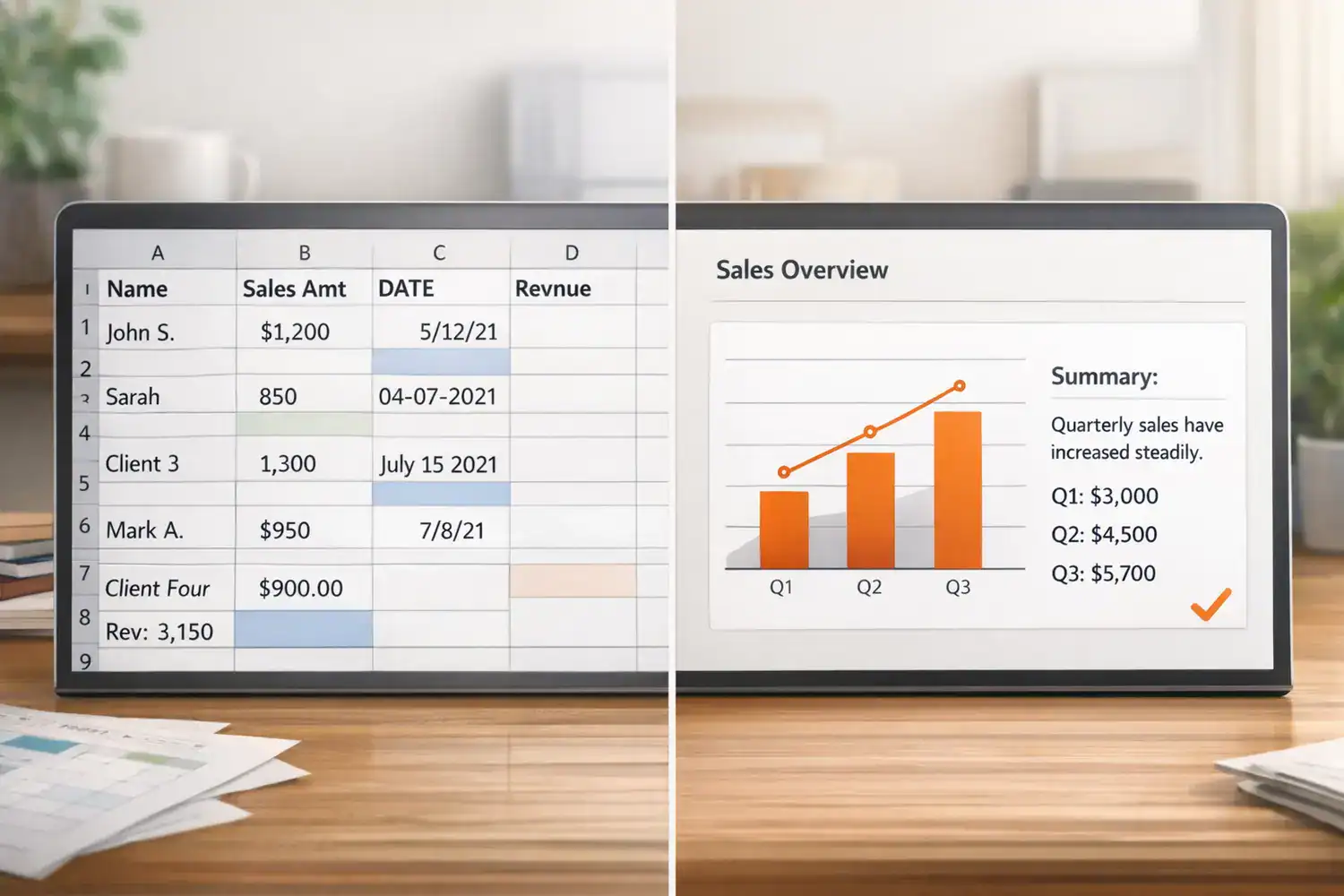
- Main warning: AI is fast, but it can confidently misread messy categories, missing values, or bad date formats.
The short answer: these are the best AI tools for data analysis beginners
If you want the direct answer within 30 seconds, here it is. For most non-technical users, ChatGPT is the easiest place to begin because you can upload a spreadsheet and ask questions in normal language. If you work in Excel all day, Excel Copilot is often the better fit because it keeps you in a familiar environment. If you use Google Workspace and want a lighter, lower-cost entry point, Google Sheets with Gemini is the easiest free-adjacent option. If you run a small business and need dashboards or forecasts, Domo and Akkio are stronger choices than chat tools alone. Each option asks for a different kind of commitment, and the one that clicks is the one you’ll actually open again next week.
Best by category:
- Chat-based: ChatGPT, Claude
- Spreadsheet-native: Excel Copilot, Google Sheets + Gemini
- No-code tools: Domo, Akkio, Obviously AI
- BI-style: Power BI with Copilot, Tableau Pulse
The calm truth is that you do not need the “most advanced” tool to get value. The best first tool is usually the one you will actually open again next week. The tool that wins is the one that feels like a habit, not a project.
Why AI feels like a shortcut now — and where it still goes wrong
The biggest shift for beginners is simple: data analysis no longer starts with formulas. It often starts with a question. Instead of remembering pivot table steps or writing nested functions, you can ask, “Which product category dropped the most last month?” or “Summarize the top trends in this file.” That is why AI for Excel and Google Sheets beginners has become so appealing. It lowers the entry barrier. The hardest part of analysis shifts from execution to asking the right question.
Research from Databricks and Splunk points to the same broad pattern: AI speeds up exploration, summarization, anomaly spotting, and chart creation, especially for users who are not deeply technical. It can help you move from raw table to first insight in minutes instead of an hour. For a student project or a weekly sales report, that matters.
But speed is not the same as accuracy. AI tools are only as good as the structure of your data and the clarity of your prompt. If your spreadsheet has duplicate rows, mixed date formats, blank headers, or category labels like “North-East,” “NE,” and “N.E.,” the AI may produce a polished answer that is still wrong. I have seen this happen with a chart that looked perfect at first glance. The colors were clean, the labels were tidy, and the summary sounded smart. It had also merged categories incorrectly and changed the story entirely.
If your data is messy, AI often amplifies confusion faster than it creates insight.
A quick comparison before you pick anything
| Tool | Best for | Ease of use | Setup difficulty | Free tier | Key limitation |
|---|---|---|---|---|---|
| ChatGPT | Uploading CSVs, asking questions, quick charts | Very easy | Low | Limited | Needs good prompts and result checking |
| Excel Copilot | Excel-heavy workflows, familiar spreadsheet analysis | Easy for Excel users | Medium | No real free tier | Requires Microsoft setup and licensing |
| Google Sheets + Gemini | Simple spreadsheet help, students, light analysis | Easy | Low | Some plans/features vary | Less depth for advanced analysis |
| Domo | Small business dashboards and reporting | Moderate | Medium to high | Usually demo-led | Can be expensive and feature-heavy |
| Akkio | No-code predictions, marketing and sales data | Moderate | Medium | Trial availability varies | Cost rises as usage grows |
Hidden friction matters more than feature lists. Login setup, file permissions, and data cleaning are often the real blockers for beginner-friendly AI data analysis tools. Even tools backed by major AI infrastructure companies still require you to format your data before the model can work with it. Worth it if the setup friction is a one-time cost; not worth it if every session starts with a permissions error.
Which type of tool fits your real workflow?
Spreadsheet AI: best when you already work inside rows and columns
If your day starts in Excel or Google Sheets, stay there first. Spreadsheet-native AI tools are the least disruptive option for AI tools for analyzing spreadsheets. Excel Copilot can help summarize tables, suggest formulas, and create charts inside a familiar workspace. Google Sheets with Gemini can help with quick summaries and basic analysis for lighter use cases.
The strength here is comfort. You already know where the tabs are, where the filters live, and how to fix a column manually when something breaks. The weakness is depth. These tools are great for quick reporting and pattern spotting, but they are not always the best at more flexible reasoning across a messy dataset.
Chat-based AI: best when you want the simplest interface
Chat-based tools like ChatGPT and Claude feel less intimidating because the interface is just a box and a file upload. You drop in a CSV and ask plain questions: “What changed month over month?” “Which segment has the highest average order value?” “Create a bar chart of revenue by region.” For students and non-technical users, that simplicity is a huge advantage.
I often recommend this route first because it reduces startup friction. The trade-off is prompt quality. If you ask vague questions, you will get vague or misleading results. You also need to verify calculations and category logic. This is where many beginners mistake polished language for correct analysis.
No-code AI platforms: best for recurring business analysis
Tools like Domo, Akkio, and Obviously AI are built for people who want more than one-off answers. They lean into dashboards, forecasting, and operational reporting. According to Domo’s overview of AI data analysis tools, the real value is not just generating a chart once, but creating a repeatable system for business questions.
If you run a small business, this category makes sense when you need weekly KPI tracking, campaign reporting, lead scoring, or simple forecasting. The downside is cost and setup. These are not always plug-and-play. You may need data connectors, user permissions, and some time to make the dashboard useful instead of cluttered. I have opened dashboards like this before and felt the same reaction many beginners do: too many charts, too little clarity.
Entry-level BI tools: best for small teams that need structure
Power BI with Copilot and Tableau Pulse sit a little closer to business intelligence than casual spreadsheet help. They are useful when a team needs shared definitions, recurring reports, and cleaner distribution of insights. For solo users, they can feel heavier than necessary. For a team of 3 to 20 people, they can be a smart next step after spreadsheets stop scaling.
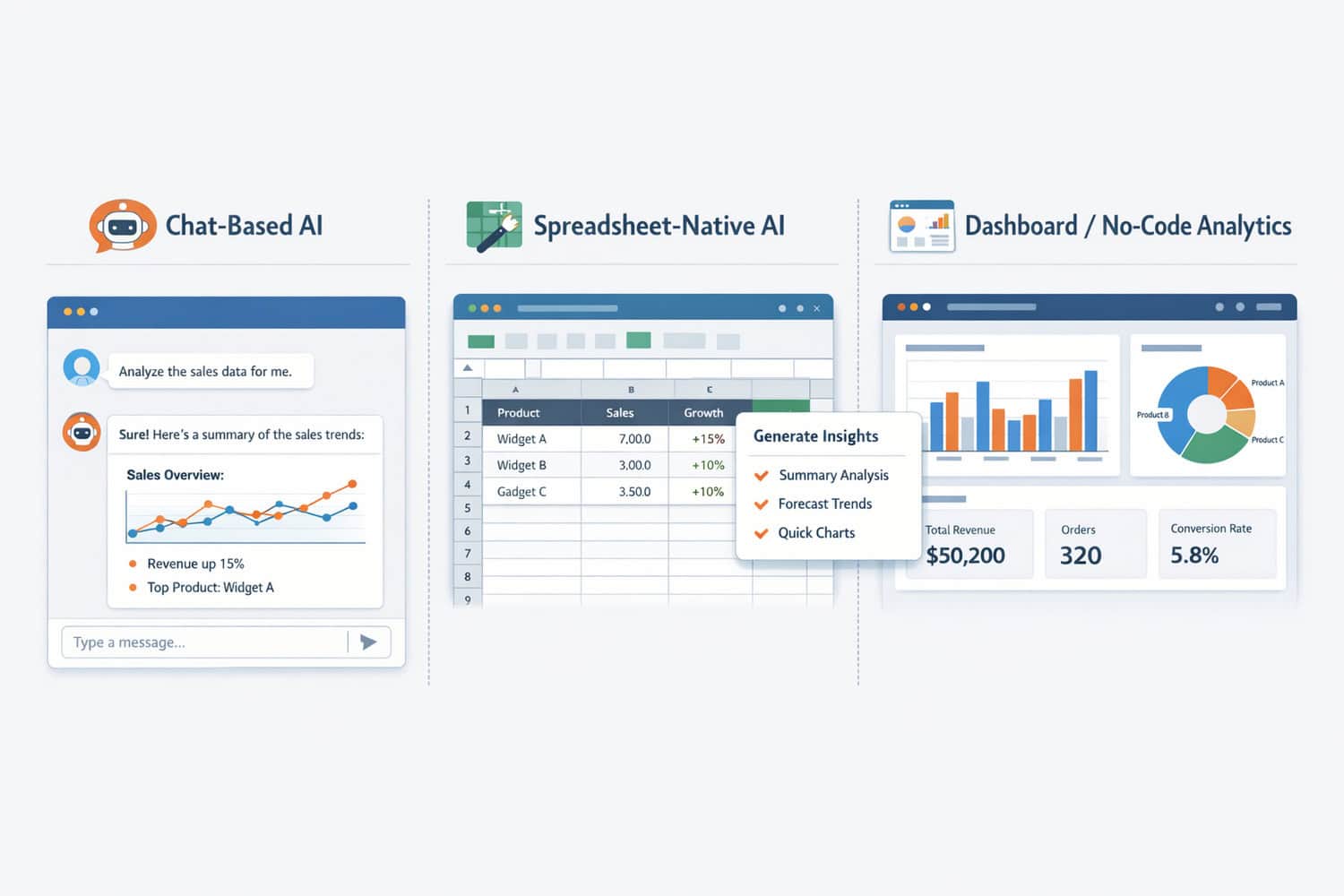
For AI tools for small business data analysis, the right choice depends on whether you need quick answers, recurring dashboards, or shareable reports. Those are three different jobs, and one tool rarely does all three well. A tool that nails quick answers usually stumbles on polished reports.
The beginner mistakes that waste the most time
Mistake one is uploading dirty data and assuming the AI will “figure it out.” Sometimes it can help clean obvious issues, but it is not magic. Before you upload anything, check five basics: clear headers, consistent date format, no merged cells, no duplicate records, and no mixed category labels. If your spreadsheet fails those checks, fix them first. The five checks take two minutes and save the twenty you would have spent debugging bad outputs.
Mistake two is asking broad prompts like “Analyze this data.” That sounds efficient, but it usually leads to generic summaries. Better prompts are specific: “Compare sales by region over the last 90 days,” “Find unusual spikes in returns,” or “Show the top 5 categories by average margin.” If you are learning how to use AI for data analysis, prompt precision matters almost as much as the tool.
I learned this the annoying way with an AI-generated chart that looked polished enough to share. It had grouped categories incorrectly because the source sheet used inconsistent labels. I nearly sent it to a client. Since then, I always ask the same question in two tools when the result matters. That extra 3 to 5 minutes can save a lot of embarrassment.
Another misconception: free tools are always enough. They are enough for trying ideas. They are not always enough for recurring business reporting, collaboration, or larger datasets. For example, enterprise-tier AI platforms like Scale AI offer data annotation and LLM evaluation services that go well beyond what a free chatbot can handle. The real cost of free tools isn’t money — it’s the time lost when a one-off script won’t scale to a recurring report.
What I would choose in your situation
Here is the practical decision framework most people need.
- I use Excel daily: Start with Excel Copilot. You will get value faster because the environment is already familiar.
- I want the simplest UI: Start with ChatGPT. It is the easiest on-ramp for AI data analysis tools for non-technical users.
- I want a free or low-cost option: Start with Google Sheets + Gemini if your analysis is basic and your data is small.
- I run a small business: Look at Domo or Akkio if you need dashboards, recurring reports, or forecasting.
- I need team reporting: Consider Power BI after you outgrow ad hoc spreadsheet work.
Who should use chat tools first: students, solo professionals, marketers, operations staff, and anyone doing one-off analysis on CSV files.
Who should use spreadsheet AI first: office workers who already spend hours in Excel or Sheets and want faster summaries, formulas, and charts.
Who should skip no-code platforms for now: anyone who only analyzes data once or twice a month, has a tiny budget, or does not yet know which metrics matter. Those platforms become more valuable when your process is recurring.
No single tool is perfect. The real trade-off is ease versus depth, cost versus automation, and privacy versus convenience.
A low-risk 30-minute plan to test one tool properly
If you want to avoid wasting time, do not start with your biggest or messiest file. Use a small dataset with 100 to 1,000 rows. That is enough to reveal whether the tool fits your workflow.
| Step | What to do | Why it matters |
|---|---|---|
| Pick one tool | Choose based on your main use case: spreadsheet, school, or business dashboard | Prevents random testing and confusion |
| Upload a small file | Use a non-sensitive CSV or sheet first | Reduces risk and makes errors easier to spot |
| Ask 3 simple questions | Example: top categories, month-over-month change, anomalies | Tests clarity and reasoning |
| Generate 1 chart | Create one bar or line chart only | Keeps the test focused |
| Cross-check results | Verify totals manually or in a second tool | Catches hallucinations and logic errors |
| Decide to keep, upgrade, or switch | Judge speed, trust, and cost after one real task | Makes the decision evidence-based |
Cost-wise, a chat subscription is often the cheapest paid starting point, while spreadsheet AI may depend on an existing Microsoft or Google plan. No-code AI analytics software and BI tools usually cost more, but they can replace manual reporting hours if you use them weekly.
If you want adjacent workflow help beyond analysis, you may also like this comparison of AI workflow automation tools and these AI productivity SaaS picks.
Frequently asked questions before you commit
Can AI replace data analysts for beginners?
No. AI can speed up first-pass analysis, summaries, charts, and repetitive reporting. It does not replace judgment, context, or careful validation. For beginners, it is better to think of AI as a fast assistant that helps you ask better questions and get to a first draft of insight sooner.
Are free tools enough for learning and simple projects?
Usually, yes. Free or low-cost options are enough for student work, basic spreadsheet summaries, and testing prompts. They become limiting when you need recurring dashboards, larger files, collaboration controls, or more advanced automation. Start free if you are still figuring out your use case.
Do I need clean data before using AI?
Yes, at least reasonably clean data. Clear headers, consistent dates, no merged cells, and standardized category labels make a huge difference. Tool performance varies depending on how clean and structured your spreadsheet is. Many “bad AI” experiences are really bad data structure problems.
Is my data safe in beginner AI analytics tools?
It depends on the tool, your plan, and your company policy. Always review privacy settings, retention terms, and admin controls before uploading anything sensitive. For personal learning or public datasets, risk is lower. For customer, financial, or employee data, be much more careful.
Start simple now, scale later when the pain is real
If you are still deciding, my honest recommendation is simple. Start with ChatGPT if you want the easiest first experience, or Excel Copilot if Excel is already where your work happens. If you are cost-sensitive, test Google Sheets first. If you are running recurring reports for a business, look at Domo or Akkio only after you confirm that automation will save you time every single week.
The best AI tools for data analysis beginners are not the flashiest ones. They are the tools that help you answer one real question clearly, with enough trust to act on the result. I would rather see you get one accurate chart from a small file today than spend three weeks comparing enterprise platforms you do not need yet.
The smartest move is not picking the perfect tool. It is running one careful test and learning what actually helps you think better.
Try one tool today with a small spreadsheet
Pick one file. Keep it small. Ask three clear questions. Generate one chart. Cross-check the answer. That single test will tell you more than hours of reading feature pages.
If you want the simplest path, start with a chat-based tool. If you want the least disruption, start in your spreadsheet. Either way, do not wait for perfect data skills before you begin.