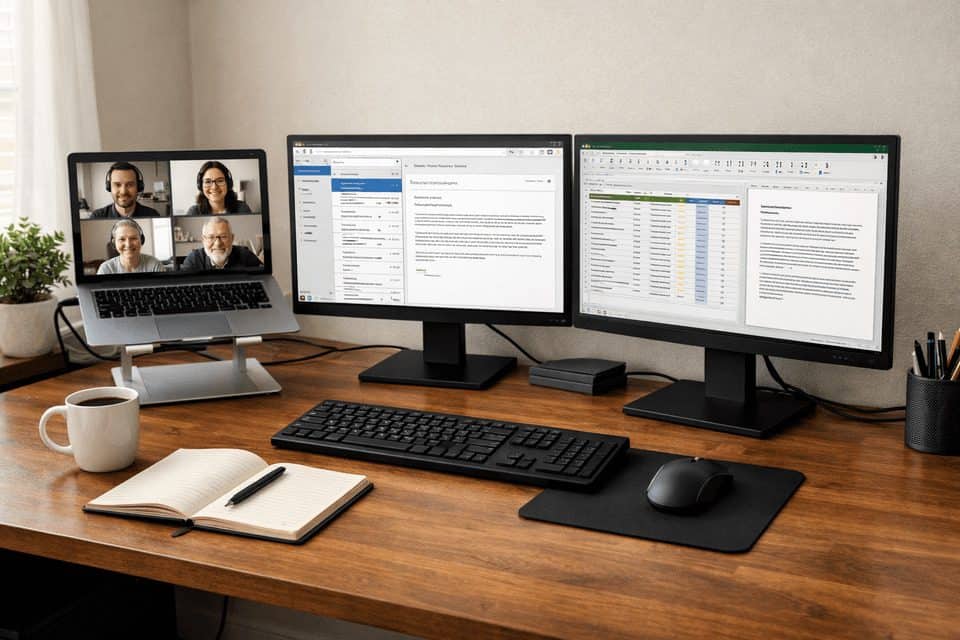
Dual Monitor Setup Productivity Guide for Less Friction
Dual monitor setup productivity guide is the phrase I wish I had searched before I spent months juggling a laptop screen, too many tabs, and a desk that looked like a cable drawer exploded on it. If your workday involves writing while researching, coding while checking logs, or sitting in meetings while trying to keep chat and documents open, a second screen can feel like immediate relief. I noticed that within an hour the first time I added one. But it is not a magic fix. The gains depend on your workflow, your desk depth, and how well you position everything.
The short answer: yes, dual monitors can improve productivity for remote work, especially if you constantly switch between apps. The main win is persistent visibility. You stop hiding one task to see another. That reduces mental friction, not just clicks. Still, if you mostly work in one full-screen app, or your desk is tiny, two monitors can create more strain than value. The friction you lose by not switching apps can turn into neck strain if the screens aren’t aligned.
Quick Summary
- Dual monitors help most when your job needs constant cross-reference: docs, chat, browser, spreadsheets, code, dashboards.
- The best dual monitor setup for remote work is usually two 24-inch or 27-inch displays, with the primary screen centered and the secondary angled inward.
- Bad ergonomics can erase the productivity gains. Neck turning, glare, and poor desk depth are the usual problems.
- You do not need to overspend. A cheap second monitor is often enough to test whether the setup fits your workflow.
- Dual monitor vs ultrawide for productivity comes down to flexibility versus seamlessness. Neither wins for everyone.
Search intent answer: If your day includes repeated window switching, two monitors usually save time and attention. If your work is simple, mobile, or space-constrained, a single good display may be the smarter choice.
Do dual monitors really help, or do they just make your desk busier?
For many remote workers, dual monitors are worth it. They are especially useful for multitask-heavy roles: software development, design review, writing with research, finance work, support roles, project management, and operations. If you regularly need one screen for active work and another for reference material, the benefit is obvious within a day or two.
Where people get disappointed is when they expect two screens to fix a messy workflow. They will not. If your day mostly happens in one browser tab, one CRM, or one full-screen creative app, the second monitor may sit there half-used. And if your desk is only 20 inches deep, two large panels can force awkward posture. I made that mistake once with two 27-inch screens on a shallow desk, and by midweek I was rotating my neck so often I could feel it by dinner.
This is ideal for: remote workers who compare information side by side, attend meetings while taking notes, or keep communication tools visible all day.
You might want to skip this if: you travel often, use one app at a time, have a very narrow desk, or already prefer virtual desktops and keyboard shortcuts over visible windows.
The honest trade-off is simple: more screen space can reduce friction, but more hardware also means more cost, more cables, and more opportunities for bad ergonomics.
Why extra screen space changes the feel of a workday
What dual monitors really buy you is not just room. They reduce context switching. Every time you hide a spreadsheet to answer chat, then reopen your browser to confirm a number, your brain has to reload the task. It is a small cost each time, but it adds up over eight hours. Research from mainstream tech publications and manufacturer guides consistently points to the same practical outcome: more visible information means less interruption in common office workflows.
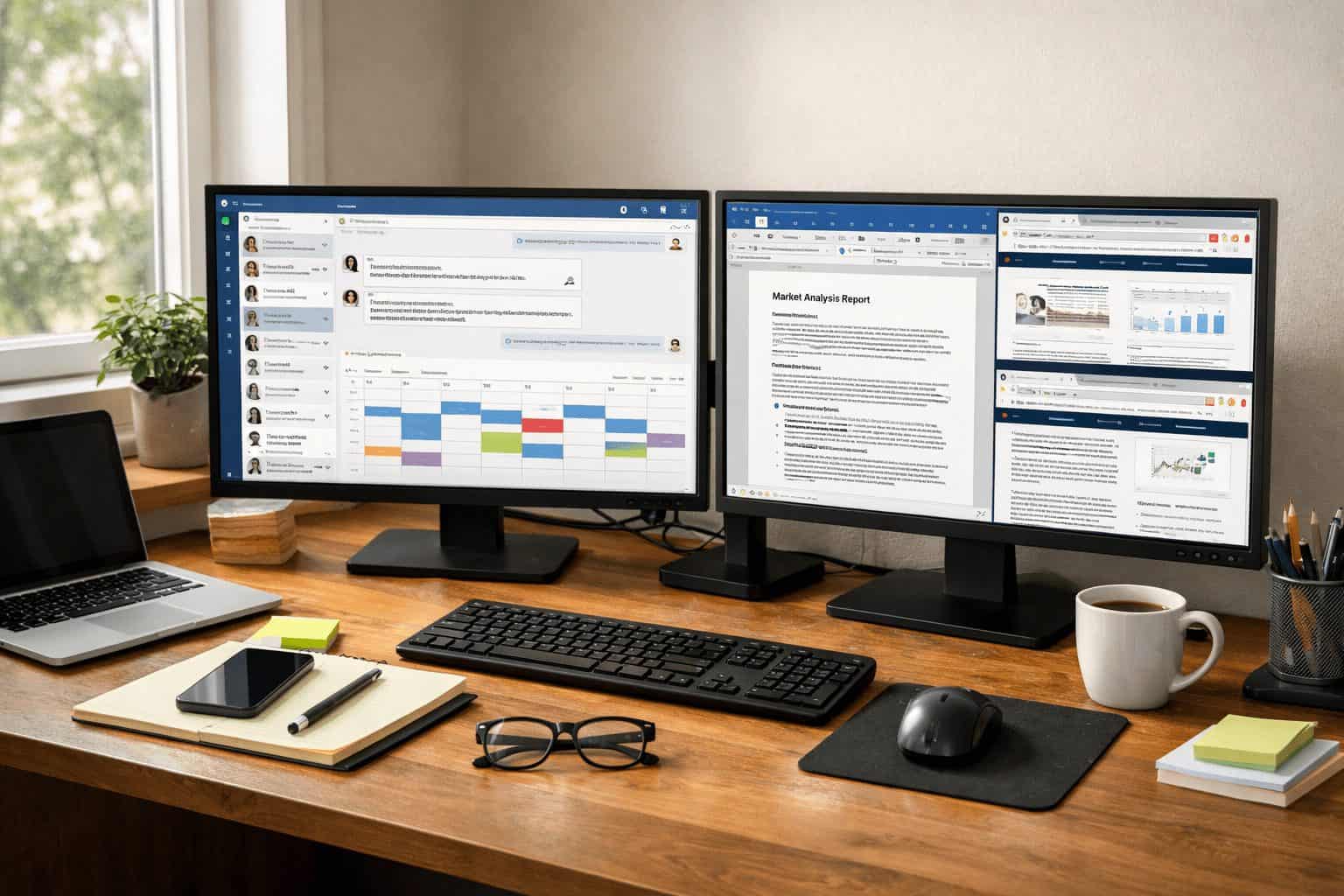
That matters more in remote work because your desktop is now your office. Meetings, docs, chat, task boards, cloud drives, and browser tabs all compete for the same space. On a laptop alone, it can feel cramped fast. I remember the low-grade irritation of hearing Slack ping, trying to keep a Google Doc open, and still needing a browser window for source material. Once I could keep reference material visible all the time, the work felt less jerky and more continuous.
Jobs that benefit most include:
- Writers and marketers: draft on one screen, sources and CMS on the other
- Analysts and finance teams: spreadsheet on one side, dashboards or email on the other
- Developers: code editor on one display, terminal, docs, or browser preview on the second
- Managers and support staff: meeting window, notes, and chat visible without stacking windows
When the right apps stay visible, the day feels less like juggling and more like working.
The key specs that make or break a dual monitor setup
You do not need to memorize monitor jargon. A few decisions matter more than the rest: screen size, resolution, desk depth, and how you plan to connect everything. For most people, the sweet spot is practical, not flashy.
| Option | Best for | Typical size/resolution | Trade-offs | Typical cost |
|---|---|---|---|---|
| Dual 24-inch | General remote work, smaller desks | 1080p or 1440p | Great value, less immersive | About $220-$500 total |
| Dual 27-inch | Heavy multitasking, spreadsheets, coding | 1440p ideal, 4K if scaling suits you | Needs more width and depth | About $400-$1,000+ total |
| Ultrawide | Seamless timeline or side-by-side work | 34-inch 1440p common | Higher cost, less flexible layout | About $350-$1,200+ |
| Single large monitor | Simple setups, limited multitasking | 27-inch to 32-inch | Cleaner desk, less persistent visibility | About $180-$700 |
A few practical rules help. 24-inch 1080p is fine on a budget. 27-inch 1440p is a strong middle ground for text clarity and workspace. 4K looks sharp, but on smaller screens it often needs scaling, which some people love and others find annoying. Aim for a viewing distance of roughly 20 to 30 inches, with the top of the main screen at or slightly below eye level. Multi-monitor setups have been standard for decades, and the core ergonomic guidelines haven’t changed much — the goal is to reduce the physical strain of constant head turning. What looks like a spec-sheet debate — 1080p vs 1440p vs 4K — becomes a comfort question once you’re actually working.
Hardware-wise, check your laptop or desktop for enough outputs: HDMI, DisplayPort, USB-C, or Thunderbolt. Some laptops support two external displays directly; others need a dock. If you are unsure, a dual monitor setup for work guide from HP and a good laptop docking station guide can save you from buying the wrong adapter chain.
How to build a dual monitor setup that feels good after eight hours
Start with the monitors themselves. Matching screens look cleaner and make alignment easier, but mixed monitors are completely fine if one is already on your desk. I have used one 27-inch main display with an older 24-inch secondary, and it worked better than expected because I kept the main screen centered and used the smaller one for chat, email, and reference tabs.
Choose a layout that fits your actual workflow
Side-by-side is the default and best for most people. Vertical stacking can help on narrow desks but often creates more upward neck movement. One vertical monitor is useful for coding, long documents, and reading. If you mostly read and write, a vertical secondary screen can be surprisingly efficient.
How to arrange dual monitors ergonomically
Here is the simple ergonomic rule: center your body on the screen you use most. If both get equal use, split the angle and center between them. Keep the top bezel around eye level, place the screens about an arm’s length away, and slightly angle the secondary screen inward to reduce neck strain. That small inward turn sounds minor, but I felt the difference almost immediately.
Desk layout matters just as much. Your keyboard should align with the primary monitor, not the gap between two screens unless you truly use both equally. If you use a laptop with the monitors, either close the laptop and dock it, or place it on a stand off to the side. Leaving it low on the desk in front of you often creates a weird three-screen triangle that looks productive and feels terrible.
Monitor arms, stands, and cable management
Monitor arms are one of the best dual monitor desk setup tips if your desk supports them. They free up surface space, make height adjustment easier, and help with dual monitor cable management. Basic dual arms often start around $40 to $80, while sturdier gas-spring options can run $120 or more. Stands are cheaper, but they take up more room and usually offer less flexibility.
For cables, route power and display lines together, use Velcro ties, and mount the power strip under the desk if possible. It sounds cosmetic, but loose cables create friction every time you clean, move equipment, or troubleshoot a connection. For more ideas, see our cable management solutions for desks and home office desk setup guide.
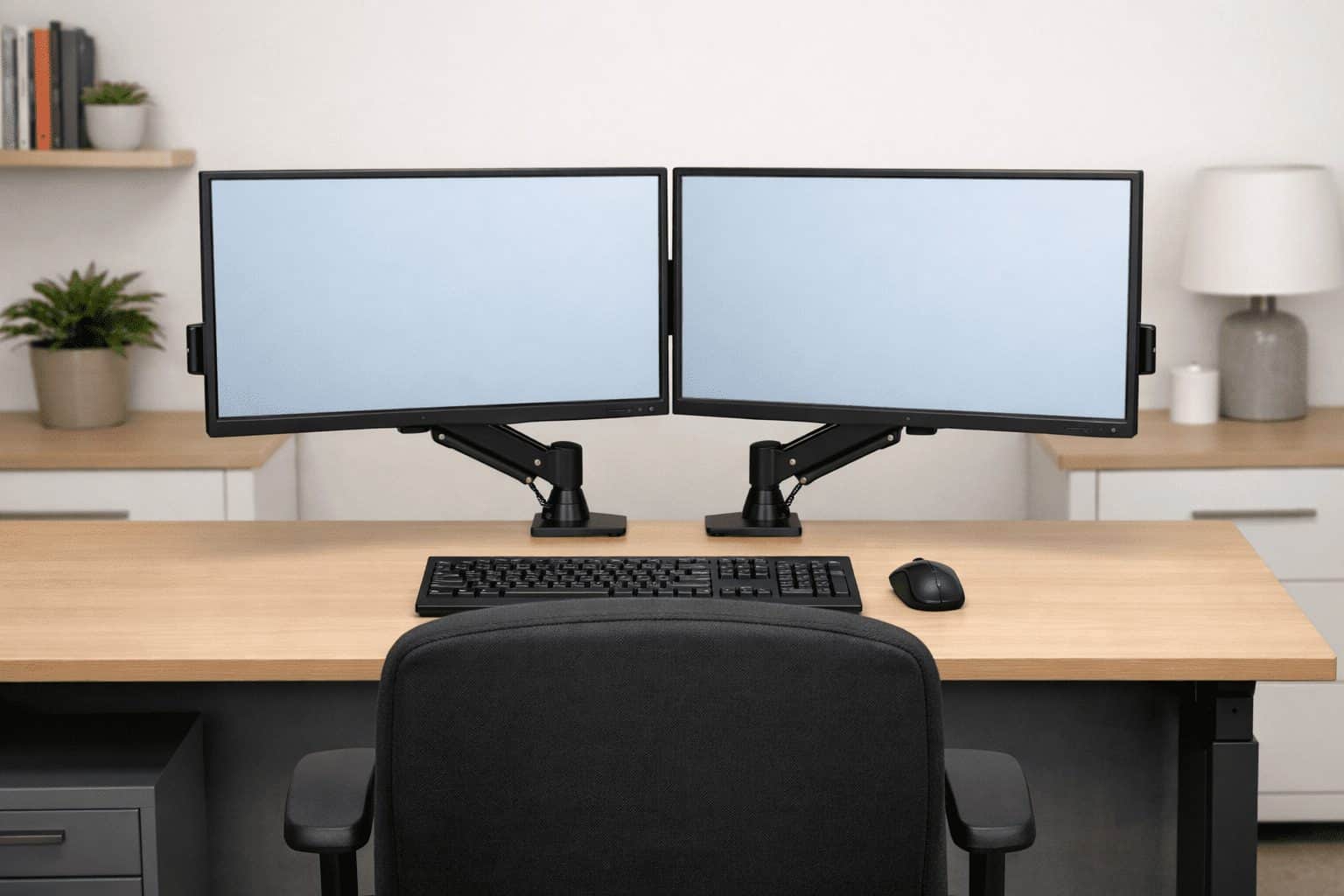
The best setup is the one your neck forgets about.
The mistakes people regret after buying the second screen
Practical tip: Before buying two new monitors, try a cheap second monitor temporarily. Borrow one, use an older display, or pick up a budget panel first. It is the fastest way to test whether your workflow actually benefits.
The most common mistake is buying screens that are too large for the desk. Width gets all the attention, but desk depth is often the real limiter. If your eyes are too close, text feels harsher, head movement increases, and the setup starts working against you. This is the regret I hear most often, and I had it myself with a shallow desk and oversized monitors.
The second mistake is placing both monitors off-center and then turning your neck all day. Your primary monitor should be directly in front of you if one screen dominates your work. If not, center yourself between them and keep both angled inward. Another common issue is glare. A bright window behind you or beside the monitors can wash out text and leave you squinting by midafternoon.
Warning: Dual monitors can increase clutter and physical strain if poorly positioned. More screen space is helpful only when the posture, lighting, and cable routing are under control.
Eye strain is also real. Use reasonable brightness, increase text size if needed, and take short breaks. The screen should not feel like a flashlight in a dim room. If your setup hums with fan noise, adapter heat, and dangling cables brushing your legs, that low-level annoyance chips away at the productivity gains.
Dual monitors, ultrawide, or one big screen: which choice actually fits you?
If you are stuck between options, think less about specs and more about window behavior. Do you want separate spaces that are easy to dedicate to different tasks, or one large canvas with no bezel in the middle?
Dual monitors are the most flexible. You can mix sizes, upgrade one at a time, rotate one vertically, and keep apps separated naturally. They are often the best value because you can scale gradually. The downside is the bezel break and the extra cable clutter.
Ultrawide monitors feel cleaner and more seamless. They are great for timelines, large spreadsheets, and side-by-side windows without a center gap. But they cost more upfront, and if part of the screen fails or you want a different layout later, you have fewer options.
Single large monitors are the simplest. They suit people who want one clean display and use snapping tools well. But they usually do not match the persistent visibility that two separate screens provide.
My rule of thumb:
- Choose dual monitors if you live in chat, docs, browser tabs, spreadsheets, or code.
- Choose ultrawide if you hate bezels and prefer one continuous workspace.
- Choose one large monitor if simplicity matters more than maximum multitasking.
For more monitor-specific buying criteria, our monitor buying guide for productivity pairs well with this decision. You can also compare practical setup advice from PCMag’s dual monitor setup tips and a general overview from CNET on productivity with dual monitors.
The right display choice is the one that removes the most friction from your own tasks, not the one that looks best in a desk photo.
A simple setup checklist you can follow this weekend
You do not need to perfect everything on day one. The smartest approach is iterative: set up, work for a week, then adjust. That is how I finally landed on a layout that felt natural instead of impressive-looking but awkward.
| Step | What to do | Why it matters |
|---|---|---|
| Measure your desk | Check width and depth before buying | Prevents oversized screens and poor viewing distance |
| Choose size and resolution | 24-inch or 27-inch, 1080p or 1440p | Balances clarity, budget, and desk fit |
| Pick your layout | Side-by-side, stacked, or one vertical | Matches your workflow instead of forcing one |
| Set height and angle | Top near eye level, secondary angled inward | Reduces neck and eye strain |
| Connect smartly | Use proper ports or a dock | Avoids adapter chaos and unstable connections |
| Assign app roles | Primary for active work, secondary for reference | Makes the productivity gain obvious |
| Fine-tune after one week | Adjust brightness, angle, and app placement | Small changes often fix discomfort |
If you use a laptop full-time, check port support first and keep a docking station guide handy. If comfort is still off after adjusting the screens, your chair and desk height may be the real issue, which is where our best ergonomic office chairs guide becomes relevant. Port support is the kind of detail that only matters when it’s missing, and by then you’re already annoyed.
Frequently asked questions people ask before they buy
Dual monitor vs ultrawide for productivity: which is better?
Dual monitors are usually better if you want flexibility, lower upgrade cost, and dedicated spaces for different apps. Ultrawide is better if you want one seamless screen and dislike the bezel gap. For remote work with chat, meetings, docs, and browser windows, dual monitors often feel more naturally organized.
Can a laptop handle two monitors?
Many can, but not all in the same way. It depends on your laptop’s graphics support and available ports such as USB-C, Thunderbolt, HDMI, or DisplayPort. Some models support two external displays directly; others need a dock. Check your manufacturer specs before buying adapters or monitors.
Are two different monitors okay, or do they need to match?
Two different monitors are fine. Matching screens look cleaner and make alignment easier, but mixed sizes or resolutions can still work well. Use the better monitor as your primary display and assign the secondary one to email, chat, dashboards, or reference material.
What are the most common dual monitor setup mistakes?
The big ones are buying monitors too large for your desk, placing both screens off-center, ignoring glare, and letting cables pile up. Another mistake is assuming more screen space automatically means more output. The setup only helps when it matches how you actually work.
So, should you add a second monitor?
If your day is full of switching between communication, reference material, and active work, the answer is usually yes. A thoughtful dual monitor setup can make remote work calmer, faster, and less mentally choppy. That said, it only pays off when the setup respects your desk size, your posture, and your habits.
I would not frame two monitors as a status upgrade. They are a friction-reduction tool. For some people, that tool is transformative. For others, it is just extra hardware. The most useful mindset is to treat the setup like a working system: test, adjust, and keep what genuinely makes the day easier.
The best productivity upgrade is not more gear; it is less friction between you and the work.
Try the low-risk version before you spend big
If you want to build the rest of your workspace around it, these guides can help:
→ Minimal desk setup ideas for remote work
→ How to improve daily life quality step by step
→ Daily habits to reduce stress