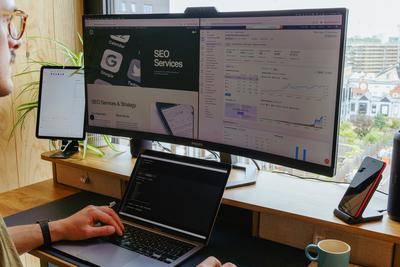
Dual Monitor Setup Productivity Guide
This dual monitor setup productivity guide starts with a familiar problem: you’re bouncing between Slack, a doc, five browser tabs, and a spreadsheet—alt‑tab, alt‑tab, alt‑tab—until your focus feels thin and the work becomes oddly stressful. I’ve been there, trying to keep everything “visible” in my head because I couldn’t keep it on screen. Two monitors can ease that mental juggling—but only if you set them up intentionally. More screen space doesn’t automatically mean more productivity.
Do Dual Monitors Improve Productivity?
Quick answer: yes—for multitask-heavy and reference-based work. No—if your tasks are simple, linear, or you’re easily distracted. Most people see faster task switching and lower cognitive load when work spans multiple apps.
Recommendation: use two screens if you regularly work across multiple apps simultaneously.
In real terms, the gain comes from fewer context switches. When your document stays open while your references remain visible, your brain doesn’t need to reconstruct context every few seconds. That said, a second screen can become a distraction sink if you treat it like a second TV of notifications.
Why Screen Setup Impacts Productivity More Than You Think
Productivity often looks like time management, but it’s just as much about attention management. Every time you switch windows, there’s a small cognitive cost—your brain reloads context, reorients, and resumes. Do that 200 times a day and it adds up.
Remote work increases this load: Slack or Teams, project tools, docs, dashboards, email, and meetings all compete for your visual space. A dual screen setup expands your visual workspace, which reduces strain on your mental workspace.
I didn’t realize how much time I was losing until I tracked how often I switched windows for a week. It was… a lot more than I expected. The roles that benefit most are developers, analysts, writers, and managers—anyone who constantly references one source while producing in another.
For background reading, CNET discusses how expanded screen real estate can reduce task-switching friction, and HP Tech Takes offers a practical overview of setup considerations:
CNET computing insights and HP Tech Takes.
Key Facts at a Glance
| Option | Best For | Typical Cost | Desk Space | Notes |
|---|---|---|---|---|
| Dual Monitors | Multitasking, referencing | $200–$600+ | Medium–High | Flexible layouts; more cables |
| Ultrawide | Timeline/design work | $400–$1200+ | Medium | Cleaner look; less separation |
| Single Monitor | Focused tasks | $150–$400 | Low | Simplest, but more switching |
Hardware basics: you’ll need compatible outputs (HDMI/DisplayPort/USB‑C), possibly a dock, and enough desk depth (usually 60–70 cm) for comfortable viewing. If you’re on a laptop, a real constraint is that some models support only one external display without a dock or adapter.
How to Set Up a Dual Monitor System for Real Work
Hardware Basics
Match size and resolution where you can. Two 24–27″ monitors at 1080p or 1440p are common. Mixed resolutions can work, but I once bought mismatched panels and spent weeks fighting scaling differences—text sizes felt inconsistent and it was quietly frustrating all day.
Check your ports early. If you rely on a laptop, consider a dock for stable connections, power delivery, and fewer cable headaches.
Layouts That Actually Help
Side-by-side (horizontal): the default. Great for email + doc, or spreadsheet + dashboard.
Primary + vertical secondary: excellent for coding or long-form writing—you can see more lines at once.
Laptop + external: useful if you travel. External becomes your primary; the laptop hosts chat or music.
Workflow Examples
Writer: left = research and sources, right = document. I keep citations visible so I don’t break flow.
Developer: main = code editor, secondary = terminal/docs.
Analyst: spreadsheet on one, dashboards or notes on the other.
Manager: email/calendar on one, meeting + notes on the other.
Window Management
Use OS snapping or tools like FancyZones to predefine layouts. This is where dual screen workflow optimization pays off—windows land where they belong, every time.
Ergonomics
Keep your primary monitor centered at eye level, about an arm’s length away. Secondary screen slightly angled. Herman Miller’s ergonomics guidance emphasizes neutral neck posture and minimizing constant head turning:
Herman Miller research.

Common layouts: horizontal side-by-side, vertical secondary, and laptop + external combinations.
Practical Tips and Common Mistakes
Cable mess is another silent problem. I learned the hard way: unmanaged cables make the setup feel chaotic and harder to maintain. A few clips and a tray go a long way. See: cable management tips for desks.
Dual Monitors vs Ultrawide vs Single Screen
Dual monitors: best for separating tasks. Flexible and familiar. Downsides: more cables, potential alignment issues.
Ultrawide: cleaner aesthetic, fewer cables. Great for timelines and design, but less natural separation.
Single screen: perfectly fine for focused, linear work. Minimal setup, fewer distractions.
If you switch contexts often, dual monitors are usually the best dual monitor setup for remote work. If you want visual simplicity, ultrawide is reassuring and clean. If your job is mostly one app at a time, a single display keeps things calm.
Step-by-Step Setup Checklist
| Step | Action |
|---|---|
| 1 | Check laptop/PC outputs and GPU support (consider a dock if needed) |
| 2 | Choose monitors (ideally matching size/resolution) |
| 3 | Decide layout (horizontal or vertical secondary) |
| 4 | Set correct resolution and scaling on each display |
| 5 | Position monitors at eye level; angle secondary slightly inward |
| 6 | Configure window snapping/zones |
| 7 | Assign roles (primary = creation, secondary = reference) |
For broader setup ideas, see home office desk setup guide, ergonomic workspace checklist, and best laptops for remote work. Pair your setup with productivity apps for multitasking to make the most of both screens.
FAQ
Do dual monitors reduce focus?
They can improve focus if you separate roles and limit distractions. If you keep chat or feeds open constantly, they can hurt focus.
Can a laptop handle two monitors?
Often yes, but some support only one external display without a dock or adapter. Check your model’s specs before buying.
Is a vertical monitor worth it?
For coding and writing, yes—it shows more lines and reduces scrolling. It’s not essential for everyone.
What size monitors are best?
24–27″ is a practical sweet spot for most desks. Larger screens need more distance and careful positioning.
Conclusion
Dual monitors are a tool, not a magic fix. When your work involves structured multitasking—create here, reference there—they reduce friction and feel quietly powerful. When your workflow is simple, they may add complexity without real benefit.
I’d start by auditing your day: how often are you switching windows, and between which apps? The answer will tell you if two screens will actually help—or just look impressive.